
HdM and MI related resources

Either of:
-
Read your mails at https://ox.hdm-stuttgart.de regularly.
or
-
Activate mail forwarding from https://ox.hdm-stuttgart.de to your “real” email account.
-
External MI E-examination system access requires VPN:
-
Past years' E-examinations.
-
Your personal exam results.
-
-
OpenVPN installation page (HdM Login required).
|
 |
-
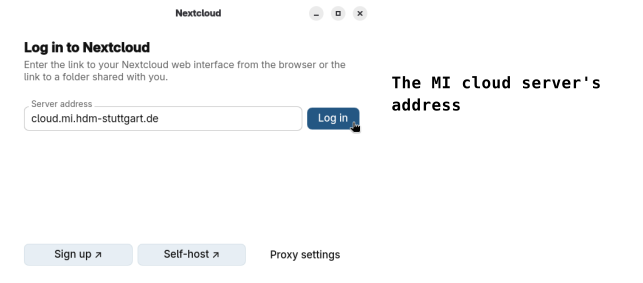
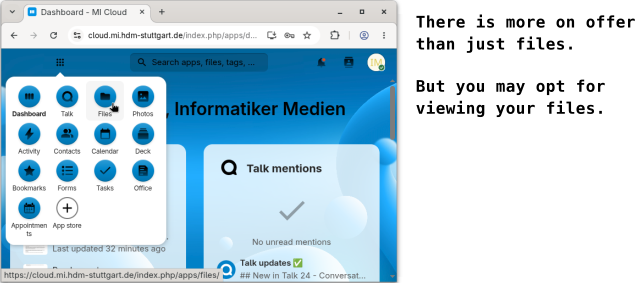
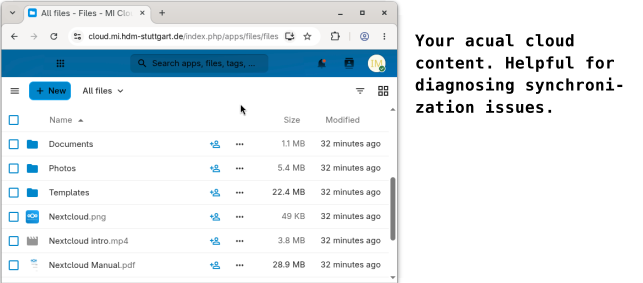
Install Nextcloud Files sync client application for your operating system on your own device(s).
-
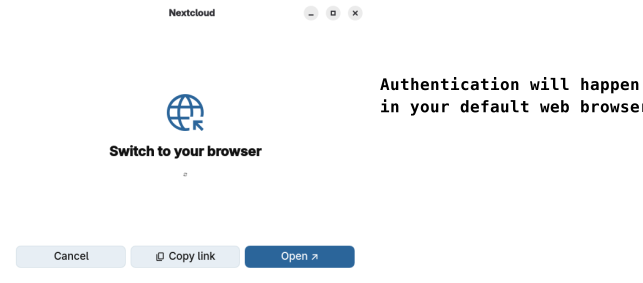
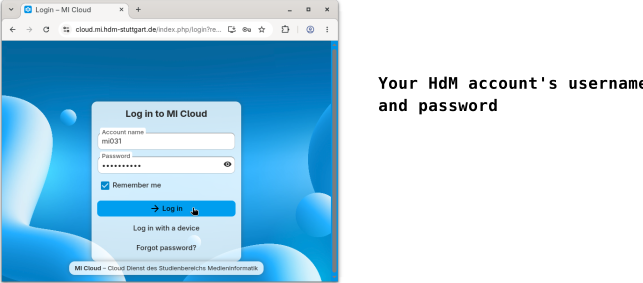
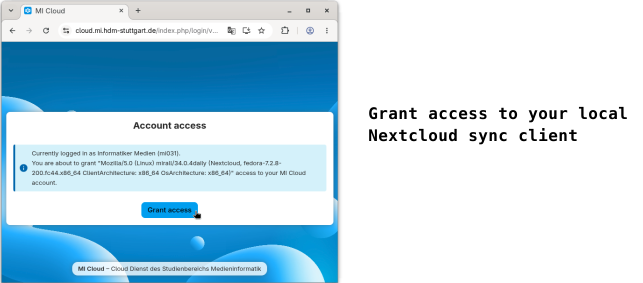
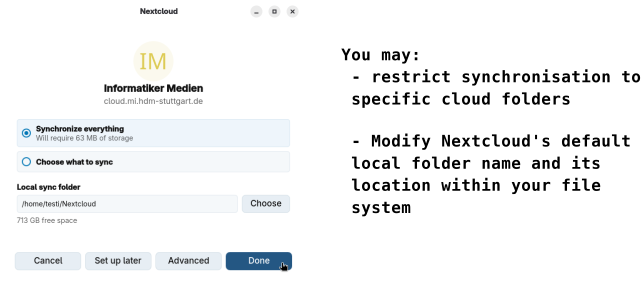
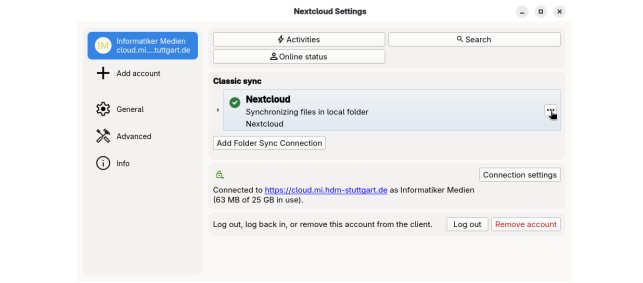
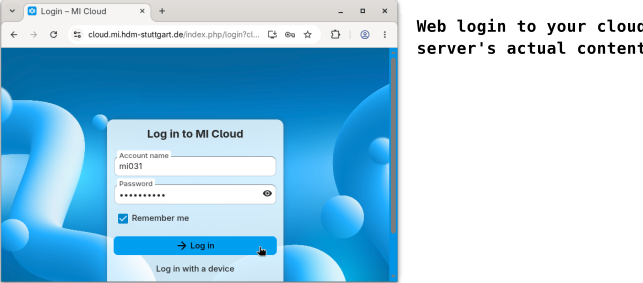
Connect to Server https://cloud.mi.hdm-stuttgart.de on both your own device(s) and a MI Pool PC.
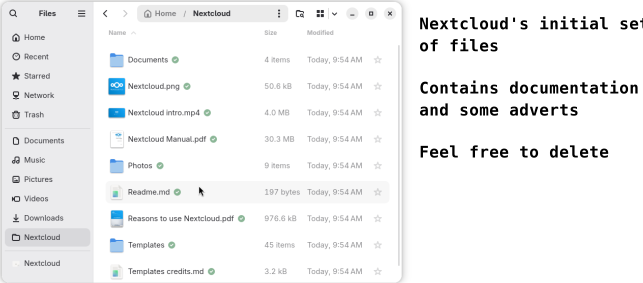
Either accept the default »Nextcloud« sync folder name or choose a suitable one.
-
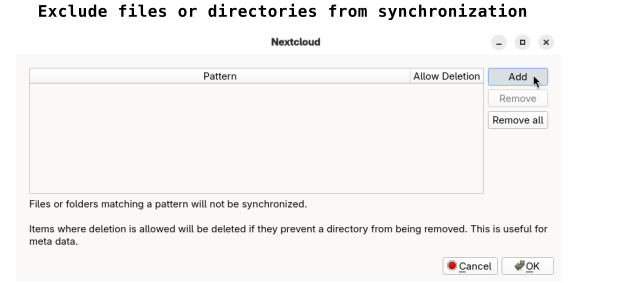
Add
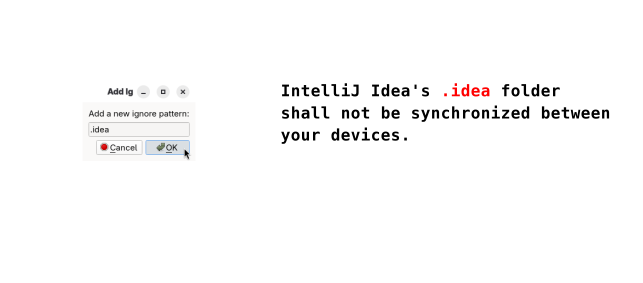
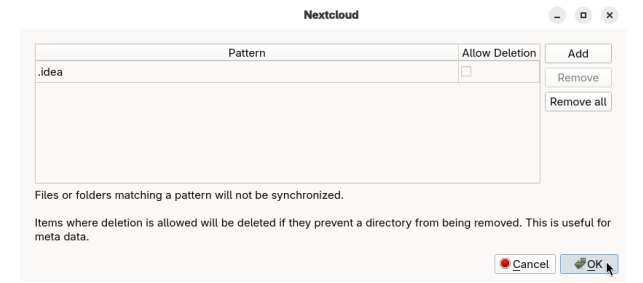
.ideato the list of ignored files to the Nextcloud sync client on all devices. -
Create a folder hierarchy e.g.
Lectures/Sd1within the Nextcloud sync folder on either one device. -
Watch the other device(s) for correct synchronization after a minute at max.
-
Unzip the Sd1.zip file from Starting from and extending class
HellointoLectures/Sd1. Watch again for correct synchronization
-
Accessing your computer pool home directory.
-
Domain hdm, requires username hdm\xy123 for login
-
Windows share, e.g. \\fs.mi.hdm-stuttgart.de\xy123 or \\10.73.128.10\xy123.
-
Requires Mi VPN.
-
Collaborative software development.
